

WP-ADMIN ACCESS
WORDPRESS LOGIN
Open Your WordPress Admin
Dashboard Now.
Use your site’s admin login to access the existing WordPress Dashboard and start working with your installed theme and settings right away.
WP-Admin Access
Open the WordPress Admin Dashboard

Log In to wp-admin
Go directly to /wp-admin, enter your admin username and password, and you’ll land in the WordPress Dashboard to start working with your theme.
2 min
All Users
Free

Reset Your Password
If you can’t sign in, use the “Lost your password?” link on the login page or contact support to help restore access quickly.
5 min
Beginner
Free

Find the Dashboard
After logging in, look for the left sidebar menu and open Appearance to manage the installed theme, menus, and widgets.
3 min
All Users
Free

Use the Correct URL
Your admin URL is typically /wp-admin (or /wp-login.php). Bookmark it for faster access next time.
1 min
Beginner
Free

Quick Access Checklist
Have your site URL, admin username, password, and access to your email ready so you can log in or reset credentials without delays.
2 min
All Users
Free

Get Login Help
Still blocked by an error, redirect, or permission issue? Reach out and we’ll help you regain access to the WordPress admin area.
10 min
All Users
Free
WP-ADMIN ACCESS
Log in to your WordPress Dashboard
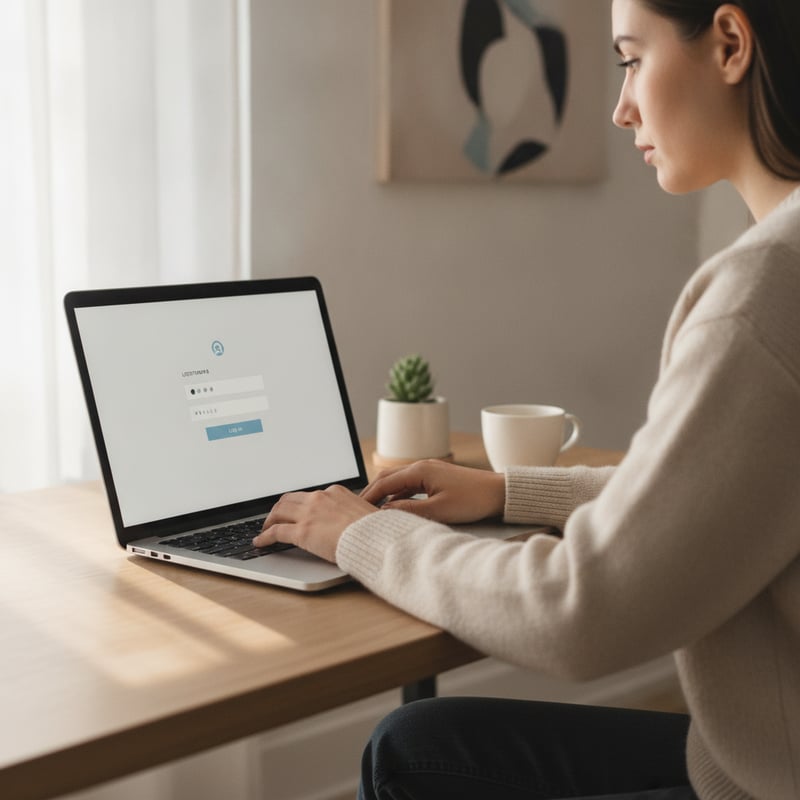
To start working with your installed theme, open your site’s WordPress Admin Dashboard. In a new tab, go to /wp-admin (or /wp-login.php), then sign in with your WordPress username and password. If you’re already logged in, you’ll be taken straight to the Dashboard. If you can’t remember your password, use “Lost your password?” on the login screen to reset it.
Once you’re in wp-admin, you can manage pages, menus, plugins, and theme settings from one place.
WordPress Admin
- Go to: yourdomain.com/wp-admin
- Alternate: yourdomain.com/wp-login.php
- Use “Lost your password?” if needed
- Still blocked? Use the Contact page
03 / Feedback
Getting into wp-admin, made simple
“The link to /wp-admin was exactly what I needed. I was in the WordPress dashboard in seconds and could start working with the theme right away.”
Alex Rivera — Site Owner
“Clear, no-fluff guidance. I used the admin URL, reset my password, and got back into wp-admin without wasting time.”
Morgan Lee — Freelancer
“This page saved me from clicking around. One direct route to the admin login and I was managing pages and settings immediately.”
Sam Patel — Marketing Manager
Admin Access FAQ
Questions about logging into wp-admin
Where do I log in to the WordPress admin?
Open your browser and go to your site’s admin URL: https://yourdomain.com/wp-admin (or /wp-login.php). If you’re already signed in, you’ll be taken straight to the Dashboard. If not, enter your WordPress username/email and password, then click Log In.
I forgot my WordPress password—what do I do?
On the login screen (/wp-login.php), click “Lost your password?” Enter the email address or username for the admin account and submit. Check your inbox (and spam/junk) for the reset email, follow the link, and set a new password. Then return to /wp-admin and log in.
The /wp-admin page redirects or shows an error—why?
Most commonly, it’s a caching issue, a plugin/security rule, or incorrect site URL settings. First, try a private/incognito window and clear your browser cache. If you still can’t reach the login page, use the Contact page to request access help and include your domain plus what error you see.
What username should I use to log in?
Use the WordPress account that has administrator access. That can be either the username created during setup or the email address tied to that account. If you’re unsure which account is the admin, try “Lost your password?” with your likely email addresses to find the correct login.
I can log in, but I don’t see theme settings—why?
Theme options only appear for users with the right permissions. Confirm you’re logged in with an Administrator role, then check Appearance → Themes and (if available) Appearance → Customize. If your account isn’t an admin, you’ll need an admin to upgrade your role before you can manage the theme.
WP-ADMIN ACCESS
Need help signing in to WordPress?
Your WordPress site
Use /wp-admin to sign in
(000) 000-0000
support@example.com
Request login help
Use this form if you can’t reach /wp-admin, forgot your password, or your account lacks access. Include your site URL and the exact error you see.


